Rent a Mac in cloud is real Apple hardware, so Xcode builds, iOS testing and macOS development without you buying a physical machine. Once your cloud Mac is provisioned, though, how do you actually connect to it? One of the simplest ways is through the DeskIn app. This guide walks you through exactly how you can access your Mac in cloud using DeskIn.
Step-by-Step Connecting to Your Cloud Mac Mini via DeskIn
Step 1: DeskIn Installation on Your Device
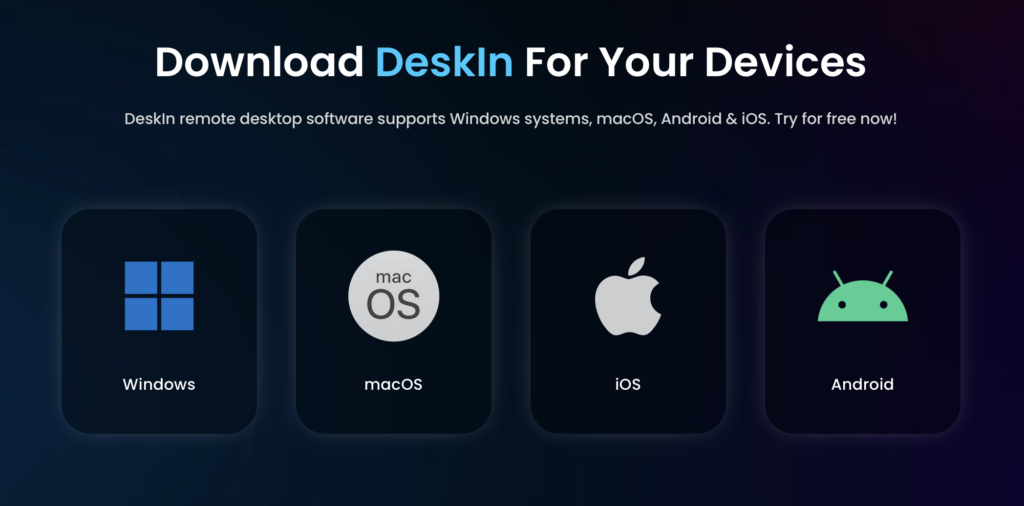
Deskin application can be downloaded form Deskin website, download the Deskin application on your local device (Windows, macOS, iOS, or Android).
Step 2: Sign In and Enter Your Remote Device Details
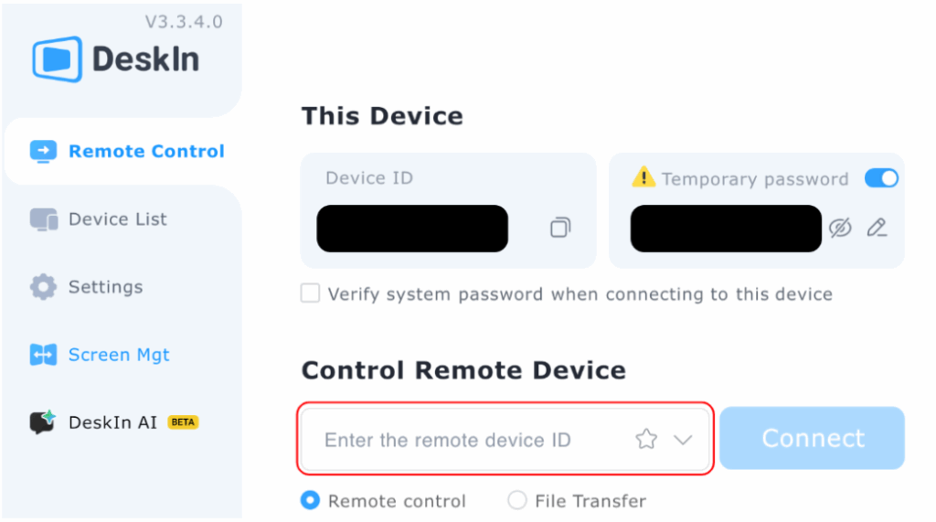
Open DeskIn, Navigate to the Control Remote Device field and input the target Device ID for your rented Mac in cloud.
Step 3: Start Working on Your Mac in Cloud
Click Connect button to begin your remote session.